Use this file to discover all available pages before exploring further.
To bring your photo avatars to life, here’s a breakdown of the steps involved in uploading, generating, training LORA models, creating new looks, and adding motion for use in JoggAI videos:
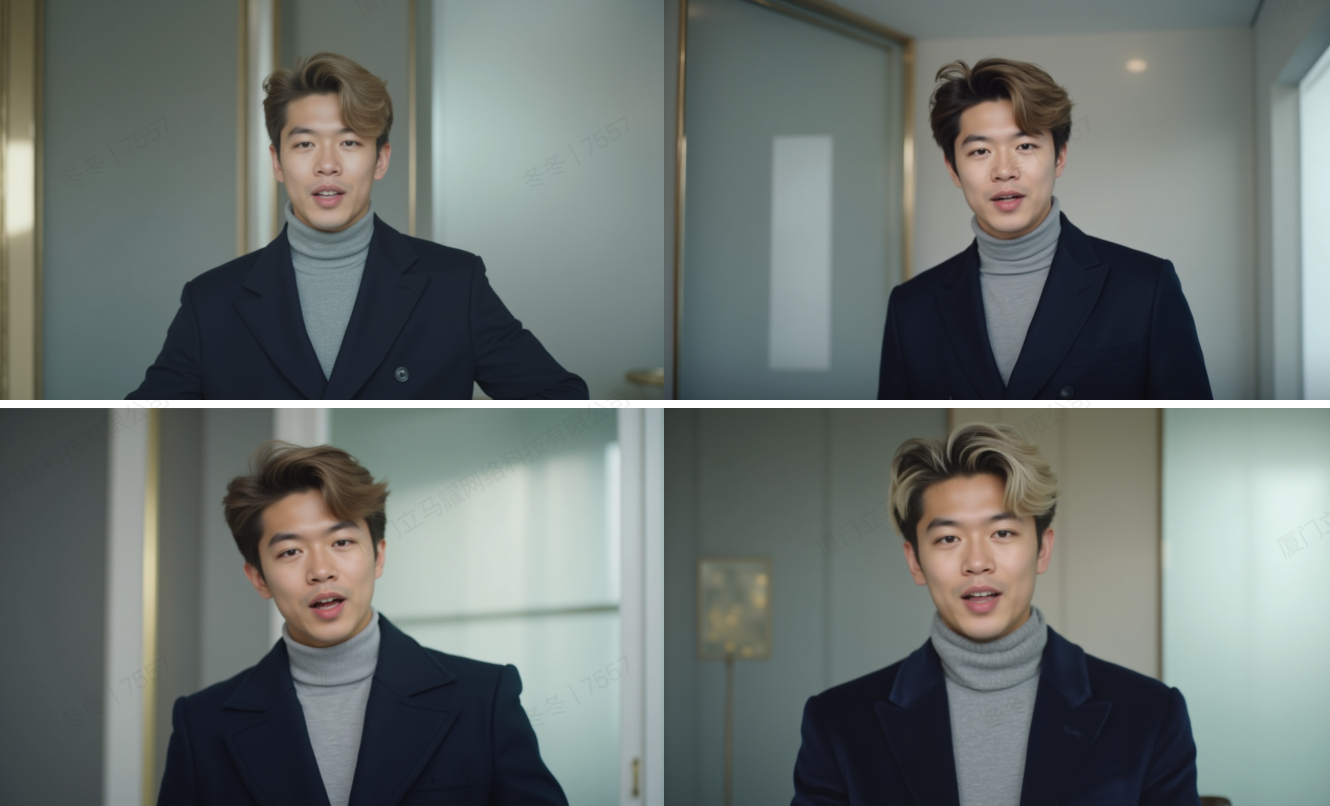
Create New Looks for the Avatar: You can use prompts to generate various “looks” for the avatar, such as different clothing, scenes, or poses. This is done within the trained Avatar Group, giving you diverse outputs.
Add Motion Programmatically: You can enhance the avatars by adding dynamic motion programmatically. This includes enabling the avatar to move and adding audio to bring the avatar to life.
Once you’ve created the photo avatar and added motion , you can use these avatars in video generation. This makes it possible to integrate highly personalized, animated avatars into video content creation, enhancing the overall user experience.
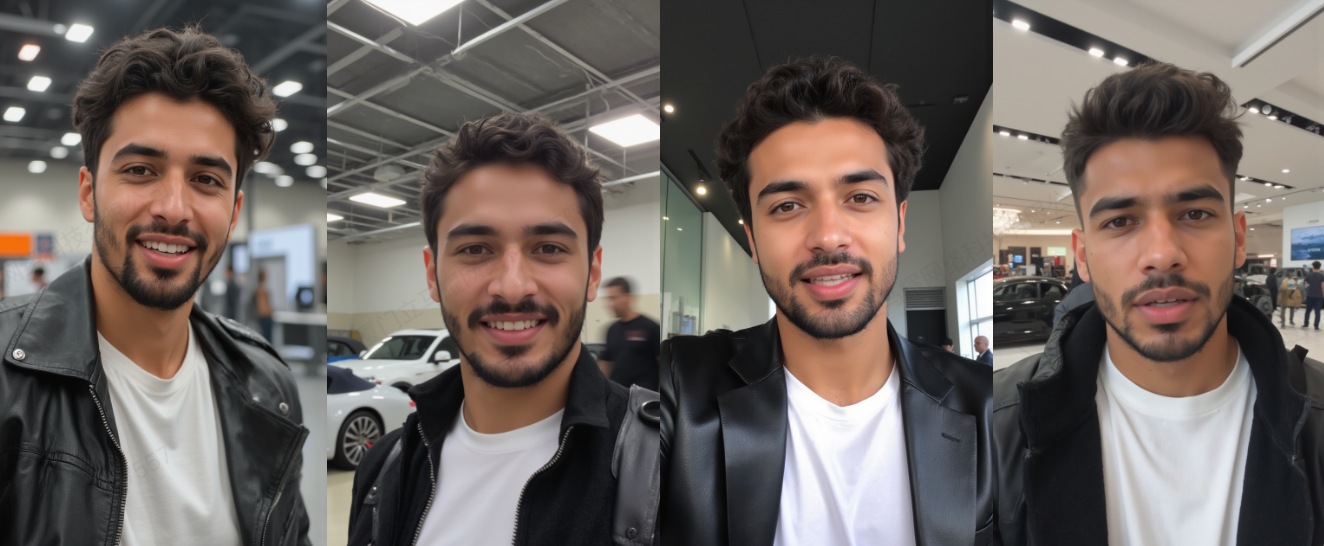
Learn how to create customized AI avatar photos using JoggAI’s API. These avatars can be personalized with attributes such as age, gender, ethnicity, pose, style, and appearance. Once generated, these avatars can be used to create new looks for further customization.
See detailed API referenceUse this endpoint to generate AI photo avatars with customizable attributes. The following attributes are required to define the avatar’s look: avatar_styleage, gender, ethnicity, appearance, background, model, aspect_ratio.
curl --location 'https://api.jogg.ai/v1/photo_avatar/photo/generate' \--header 'accept: application/json' \--header 'Content-Type: application/json' \--header 'X-Api-Key: <your-api-key>' \--data '{ "avatar_style": "social", "age": "Young Adult", "gender": "male", "ethnicity": "Asian", "appearance": "Medium-length curly bright red hair. Wearing a black satin top with a deep V-neckline, accessorized with gold earrings.", "background": "A vibrant living room with asymmetrical furniture in bold primary colors, a checkerboard floor, and a sculptural glass coffee table under a geometric pendant light.", "model": "classic", "aspect_ratio": 0}'
Generate Avatar New Look PhotoSee detailed API referenceTo generate looks for the photo avatar, you can use the Generate Avatar New Look Photo API. Provide a description in the prompt field, as well as the orientation, pose, and style.
curl --request POST \ --url https://api.jogg.ai/v1/photo_avatar/new_look/generate \ --header 'accept: application/json' \ --header 'content-type: application/json' \ --header 'x-api-key: <your_api_key>' \ --data '{ "photo_id": "https://resource2.JoggAI.ai/image/701c1dfb977d4d62bef3fda755e2d4c5/original.jgp", "avatar_style": "social", "age": "Young Adult", "gender": "male", "ethnicity": "Asian", "appearance": "Medium-length curly bright red hair. Wearing a black satin top with a deep V-neckline, accessorized with gold earrings.", "background": "A vibrant living room with asymmetrical furniture in bold primary colors, a checkerboard floor, and a sculptural glass coffee table under a geometric pendant light.", "model": "classic", "appearance": 0}
ConclusionIn conclusion, By leveraging tools like the Cenerate Avatar photo and Add Looks APIs, users can upload, organize, and enhance avatars with ease.
By following the steps outlined in this guide, you can easily add dynamic motion and immersive sound effects to your photo avatars, enhancing the user experience and bringing your avatars to life.